


PDF files are commonly used for sharing documents because they preserve formatting and can be opened on almost any device. In many situations, however, you may end up with several separate PDF files that need to be combined into a single document. For example, you might want to merge multiple reports into one file, combine scanned pages into a complete document, or organize related materials into a single package.
Learning how to merge PDF files efficiently can help simplify document management and improve productivity. This guide explains why merging PDFs is useful, outlines several reliable methods, and includes a practical approach using JOPDF as one of the available tools.
Why Merge PDF Files?
Merging PDF files is useful in many everyday situations:
* Combining multiple chapters into one document
* Organizing invoices or financial records
* Creating a single file from scanned pages
* Preparing reports for sharing
* Reducing the number of attachments in emails
Instead of sending several files separately, merging them into one PDF creates a cleaner and more professional result.
Things to Consider Before Merging PDFs
Before combining files, it is helpful to check a few details:
1. Page Order
Make sure the documents are arranged in the correct order before merging. Reordering pages afterward can take extra time.
2. File Size
Merging multiple PDFs may produce a large file. If the final document will be shared online, file size may need to be reduced afterward.
3. Formatting Consistency
Different PDFs may have:
Different page sizes
Different orientations
Different margins
While merging does not usually change formatting, it is helpful to be aware of these differences.
Method 1: Merge PDF Files Using Built-in Features
Some operating systems include basic PDF tools.
For example, on certain devices you can:
- Open PDF files in a document viewer.
- Use print options.
- Save as a combined PDF.
This approach works for simple tasks but may be inconvenient for larger projects.
Limitations often include:
* Limited page arrangement options
* No batch processing
* Slower workflow
Method 2: Merge PDFs with Office Software
Some office programs allow PDFs to be inserted into documents and exported again.
Typical steps include:
- Insert PDF content into a document.
- Arrange the pages.
- Export as a new PDF.
This method can work in some cases but often causes formatting problems, especially with tables or images.
Method 3: Merging PDF Files Using JOPDF
For users who frequently manage documents, professional PDF tools can streamline the process. For example, JOPDF offers a simple and direct method to merge multiple PDF files into a single document.
The merging process requires no complicated steps and can be completed with just a few simple operations.
Basic Steps
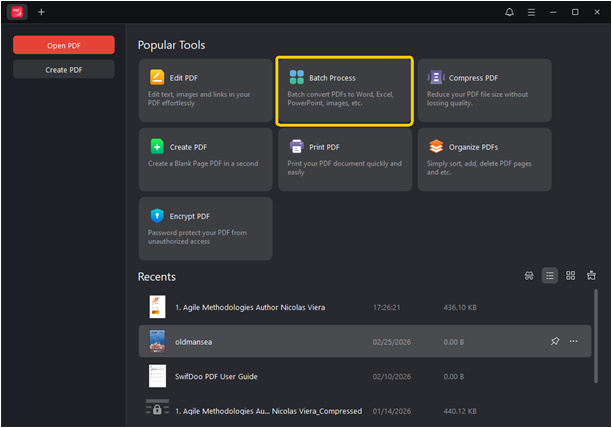
Select “Batch Process”.
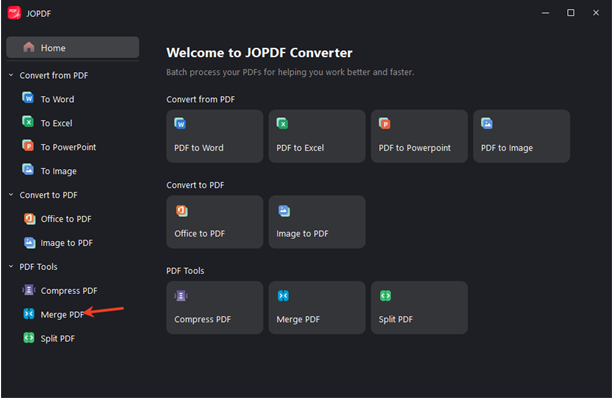
Click “Merge PDFs”.
Select the PDF documents you want to merge.
Click “Start”.
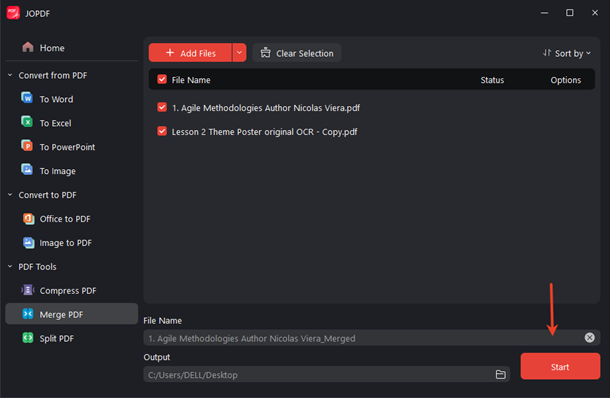
This process is usually quick and requires no advanced technical knowledge.
Best Practices for Merging PDF Files
Following a few simple practices can improve results:
1. Use Clear File Names
Naming files clearly makes it easier to arrange them in the correct order.
Example:
Report-Part1.pdf
Report-Part2.pdf
Appendix.pdf
2. Check Orientation
Some pages may be portrait while others are landscape. Checking this beforehand avoids confusion.
3. Review the Final File
After merging, open the document and verify:
Page order
Missing pages
Formatting issues
4. Optimize File Size
If the merged document is too large, compression tools can help reduce file size without major quality loss.
When You Might Need to Merge PDFs Regularly
Some users merge PDFs more frequently than others. Common examples include:
Teachers preparing course materials
Office workers compiling reports
Researchers combining papers
Administrators organizing records
In these situations, having a consistent method for merging PDFs can save time.
Conclusion
Merging PDF files is a simple but useful skill that helps organize documents and improve efficiency. Whether you are combining reports, scanned pages, or project materials, choosing the right method makes the process easier.
Basic tools may work for occasional tasks, but dedicated solutions such as JOPDF can provide a more reliable workflow, especially when handling multiple files or larger documents. By preparing files carefully and using appropriate tools, you can create clean, well-organized PDF documents that are easy to share and manage.